Workflow
You can configure a workflow for a specified item.
Workflow
A workflow can include multiple stages with configurable settings, and each stage is processed sequentially after the preceding stage has finished.
Once the workflow is configured, when a new image is created for an item, then the workflow starts processing that newly created image. Go to [Bucket View] - [Image Set List] and you can monitor the status of a workflow started for each image, by right-clicking the desired image alias in the [Image Set List], and selecting [Workflow Status].
Images to Process
If the item for which the workflow is configured has subordinate items, the images contained in those items are also processed.
When [Customize Workflow] is enabled with a subordinate item, the items at that level are not subject to processing.
To include the item again in the workflow configured for the parent level, disable this setting at the subordinate level.
When Workflow settings Are edited / changed after starting the Workflow
Editing or changing the settings updates the workflow version. The updated workflow starts when a new image is created.
The workflow processing for images that started before the version update remains unchanged after the update.
When images already existed before the Workflow is configured
By default, configuring a workflow does not start the workflow for existing images.
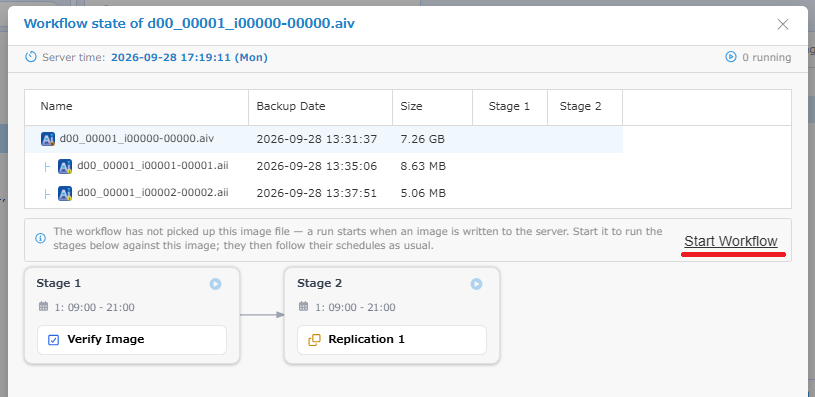
To include an existing image in the workflow, go to the [Bucket View] tab - [Image Set] list, right-click the desired image alias in the [Image Set List], select [Workflow Status], and click [Start Workflow].
Stage
設定を行うアイテムを選択して[ワークフローの設定 タブ]を選択すると追加できます。
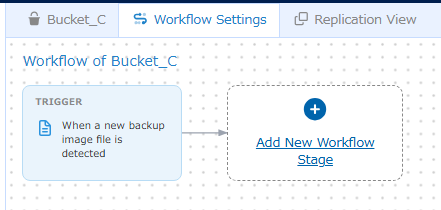
Select the item which you want to configure the workflow, and then select the [Workflow Settings] tab to add a workflow. The stages are respectively processed in sequencial order. The order of the stages can be changed by dragging and dropping them.
When multiple stages are configured, if processing fails at a stage where [Continue Workflow on Failure] is disabled, subsequent stages are not processed. When multiple stages are configured, if processing fails at a stage where [Continue Workflow on Failure] is disabled, subsequent stages are not processed. Enabling [Continue Workflow on Failure] option continues to process the susequent stage if processing at the current stage fails.
Task Type
You can configure the settings for the following task type.
- ImageVerify
- Consolidation
- BootCheck
- Replication
For more details about the respective tasks, please access here.
Schedule
If the schedule settings are not configured, creating a new image triggers the workflow, and each stage is processed in sequence. The following settings can be configured to control the timing when processing should be performed for each stage.
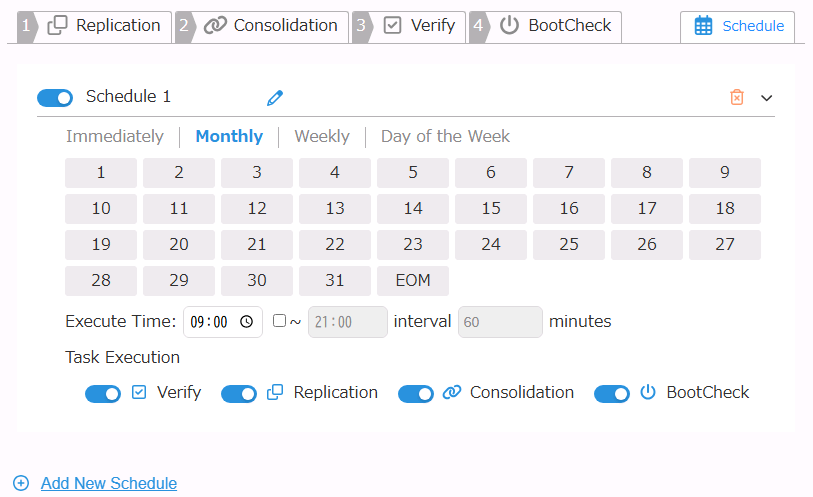
The schedule name can be changed to any name by clicking  icon.
icon.
After changing the schedule name, click the  icon to confirm it.
You can select the schedule type from the following.
-
Delayed
When a new image is created, processing starts after the specified delay. -
Monthly
You can specify the day of the month and time window when processing can start. Images created outside the specified date / time window wait until the specified start time and are then processed for that stage. -
Weekly
You can specify the date and time when processing can start on weekly basis. Images created outside the specified day of date / time wait until the specified start time and are then processed for that stage. -
Day of the Week
You can specify the days of the week and the date / time when processing can start. Images created outside the specified date / time wait until the specified start time and are then processed for that stage. -
Specified Date
You can specify the date and time window when processing can start. Images created outside the specified date / time wait until the specified start time and are then processed for that stage.
To add a schedule, click [Add new time range].
Unnecessary schedules can be deleted by clicking  .
An unnecessary schedule can be disabled instead of deleting its schedule settings.
.
An unnecessary schedule can be disabled instead of deleting its schedule settings.
For images created while the schedule is disabled, the workflow starts with that stage’s schedule disabled. When enabling the schedule again, the workflow is enabled for the images newly created after that.
If both delayed execution and other settings are configured for the same stage, delayed execution settings are applied to images created outside the process time window.
Processing starts immediately for the images newly created within the processing time window.
If the scheduled start time is reached while waiting for delayed execution time, the process starts at the scheduled start time.
Status of the Stages
Go to [Bucket View] tab - [Image Set] list, and right an image to select [Workflow Status] to monitor the status.
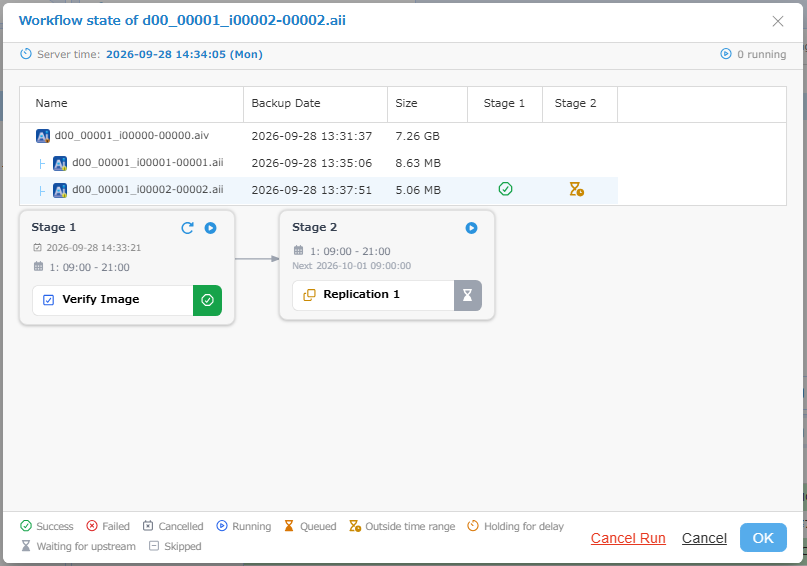
-
Clicking
 for a stage ignores the schedule settings configured for that stage and starts processing when the process for the preceding stage completes.
 -
Hover over the status icon displayed for the task type in the restpective stage, then click
 to start processing for that stage immediately.
 -
Clicking
 for a completed workflow resets the results of the respective stage and rolls the workflow back to a state where it is waiting to be executed.
 -
Click [Cancel] to cancel every stages.
[Queued] indicates that processings are in wait because the maximum number of concurrent operations has been reached.